
How to Build Custom Skills for Your SharePoint Site
If you use Microsoft 365 and have Copilot turned on, you have probably noticed a chat panel inside your SharePoint site. That chat can do more than answer questions. It can also learn new skills, so it handles repeat tasks the same way every time, instead of you typing out the same instructions over and over.
Like many of you, I have been building out skills in Claude for a while now, but want the same structure and AI brain-power in my SharePoint environment, so I’ve been building out general and specialized skills for each of my SharePoint sites, and thought I’d blog about the process for beginners. This post walks you through the process from start to finish. It is written for people who have never built a skill before.
By the end, you will know what a skill is, how to create one, and how to put it to work on your site.
What Is a Skill in SharePoint?
A skill is a saved set of instructions that tells Copilot in SharePoint how to do a specific job. Think of it like a recipe card. Instead of explaining the same task every time, you write it down once. After that, you, or anyone else with access to the site, can run it with a short request.
Microsoft’s own example is a good one to picture. You could build a skill that reviews legal contracts, checks for a lawyer ID written in a certain format, and adds any bad contracts to a list. Personally, I use it to go through a checklist of reviews as I write new content, ensuring my output is consistent every time. In my early usage of AI chat, I found myself repeating a set of instructions to accomplish this content audit, re-entering it each time I needed a draft reviewed. Once that skill is articulated and saved, I no longer need to re-explain the rules. I just ask Copilot to run it.
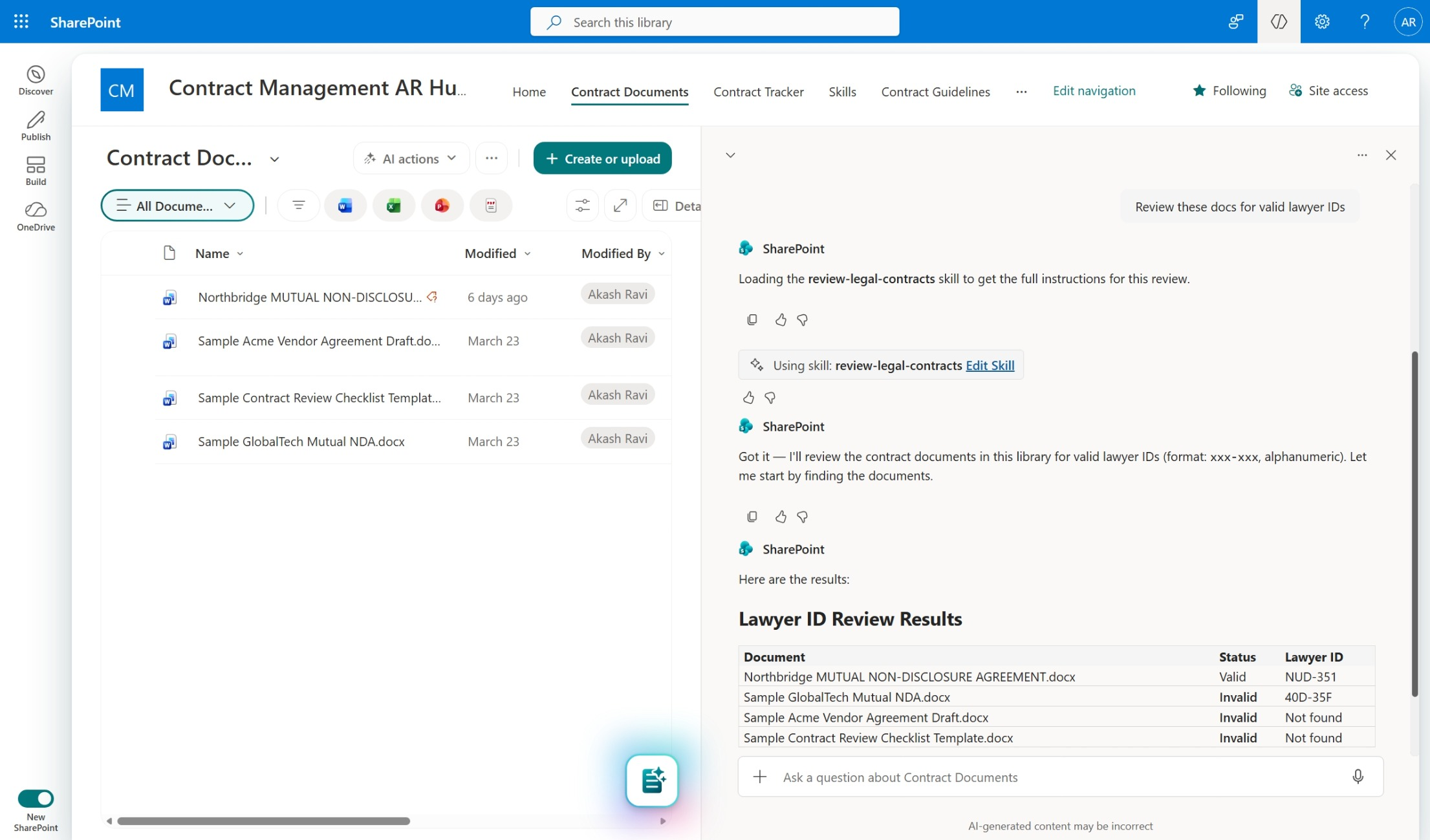
Skills only use tools that already exist inside Copilot in SharePoint. They cannot reach out to other systems, and they cannot run custom code. A skill also cannot do anything you do not already have permission to do yourself (source: https://learn.microsoft.com/en-us/sharepoint/copilot-in-sharepoint-skills), which is a huge governance benefit to using SharePoint.
A Quick Note Before You Start
You may have heard that you build a skill somewhere else and then import it into SharePoint, the way you might upload a file. Yes…but…
To start with, skills are best built right inside SharePoint, through the chat panel. You describe the task in plain English, and Copilot writes the skill for you. Behind the scenes, that skill gets saved as a small text file (called a Markdown file, ending in .md) inside your site’s Agent Assets library. Because it is a plain text file, you can open and edit it directly later if you want to fine-tune it. But for most people, especially beginners, there is no separate build-somewhere-else-and-import step. You create it in the same place you will use it.
Also worth knowing: this feature is still in preview. While it was introduced back in April 2026, a site needs to be opted in before the option shows up. If you do not see it, check with your Microsoft 365 admin.
What You Need Before You Begin
- Access to a SharePoint site where Copilot in SharePoint is turned on.
- Edit permission on the site, so you can create skills. (People with only View permission can run skills someone else already built, but they cannot create new ones.)
Step-by-Step, Creating Your First Skill
- Open the Copilot chat panel. Go to your SharePoint site or a document library. Look for the chat icon, usually near the top of the page. Make sure the page is not in edit mode, or the chat panel may not show up.
- Describe the task you want to turn into a skill. Type a request that spells out, step by step, what you want Copilot to do. Be specific. For example: “Create a skill to review legal contracts to verify whether contract documents mention a lawyer ID in the xxx-xxx format. If a contract is not valid, add the document name to the Invalid Contracts list. Create the list with relevant columns if it doesn’t exist.”
- Review the draft. Copilot writes back a draft of the skill, showing the steps it plans to follow. Read it carefully. If something is missing or off, just tell Copilot what to change, the same way you would ask a coworker to revise a draft.
- Save the skill. Once the draft looks right, confirm that you want to save it. Copilot stores it as a SKILL.md file inside the Agent Assets library on your site, in a folder named after the skill.
- Test it on a small batch. Pick one or two files in a document library that match what the skill is meant to handle. This step is optional, but it is a smart way to check your work before rolling the skill out to the whole team.
- Run the skill. Ask Copilot a question or give an instruction that matches the skill’s purpose. Copilot often finds and loads the right skill on its own. If you want to be sure, call it by name, something like “Run [skill name] on the selected documents.” Watch for a small skill indicator card in the chat window. That card confirms a skill was actually used.
Where Skills Live, and How to Manage Them
Every skill you build sits in the Agent Assets library, at a path that looks like this: /Agent Assets/Skills/[skill-name]/SKILL.md. This library is created automatically and you cannot delete it, but you can apply normal SharePoint permissions, retention rules, and sensitivity labels to the files inside it, just like you would with any other document.
By default, anyone with Edit permission on the site can create a skill, and anyone with View permission can use one. If you want tighter control, you can break permission inheritance on the Agent Assets library and set custom permissions there instead.
Built-In Skills
You do not have to build everything from scratch. Copilot in SharePoint ships with a set of built-in skills already loaded, which help you create, check, and improve your own skills. You cannot edit these directly, but you can see the full list by typing /skills in the chat and looking under “Built-in skills.”
Skills are useful, but they have real boundaries. Keep these in mind as you plan:
- They cannot reach outside SharePoint to pull data from other systems.
- They cannot run custom code.
- They cannot give a user more access than that user already has.
These limits are a feature, not a bug. A skill will never do something on your site that you personally could not already do by hand.
Getting Started
The best way to learn skills is to build a small, low-risk one first. Pick a task you repeat often, something simple like renaming files in a certain pattern or flagging documents that are missing a required field. Describe it to Copilot, review the draft, and save it.
Once you see how the process works end to end, you will start noticing plenty of other repeat tasks on your site worth turning into skills.