
Productivity Tip: Reusing PowerPoint Slides
If you’ve ever built a PowerPoint by flipping between decks, copying slides, reformatting them, fixing fonts, resizing images… you know the pain. It’s tedious. It’s messy. And it’s completely avoidable.
There’s a better way: PowerPoint’s Reuse Slides feature.
What Is “Reuse Slides”?
It’s a built-in tool that lets you pull in slides from other presentations—directly into your current deck—without breaking the design or wasting your time.
You can search past presentations, preview slides, and insert them instantly. No more opening five decks at once. No more formatting purgatory.
How to Use It
Getting started is pretty simple:
- Open your PowerPoint presentation.
- Go to either the Home or Insert tab.
- Click the New Slide dropdown.
- Select Reuse Slides at the bottom.

- Browse or search for the file you want to pull from.
- Preview slides on the right and click to insert.
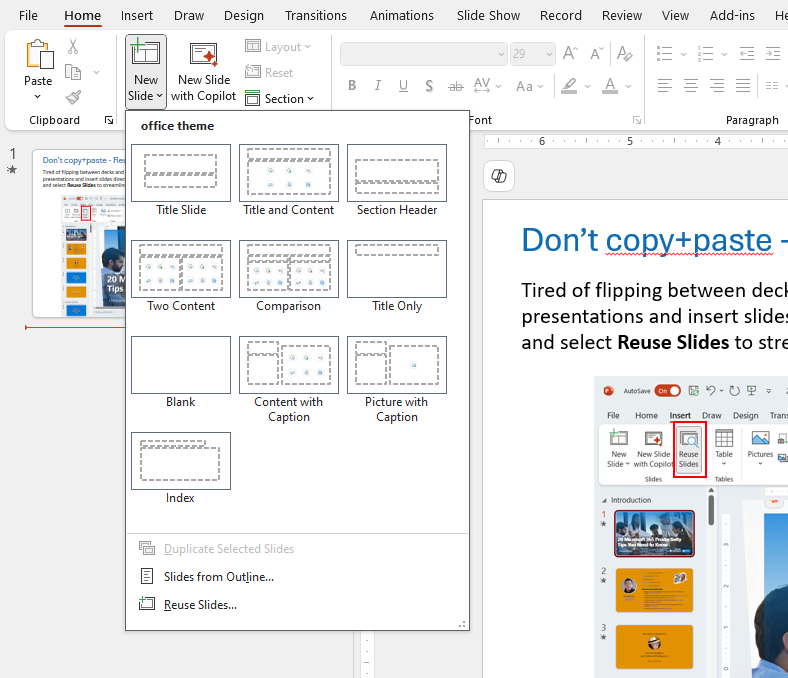
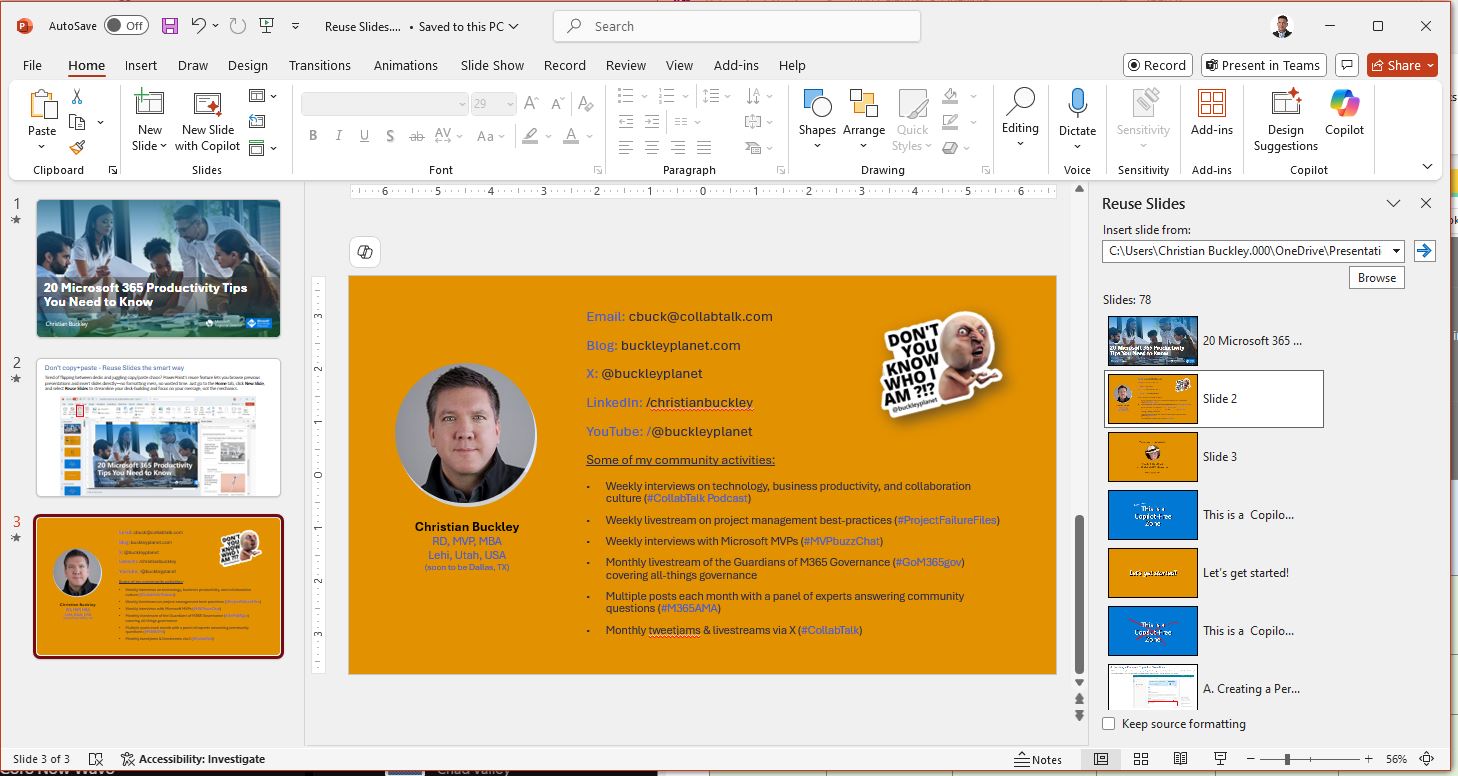
You can even keep source formatting if you want the original style—or apply your current theme for consistency.
Why It’s a Game-Changer
- No more copy-paste chaos
- Design integrity stays intact
- Build decks faster by reusing existing content
- Search across presentations instead of hunting manually
If you work in consulting, training, sales, or any content-heavy role, this trick saves hours over time.
Having worked closely with sales organizations over the years, I have built many “battle decks” with competitive details, customer pain points, and supporting details to explain the business benefits of key features. These can be massive decks that are constantly tweaked and adjusted for each customer interaction.
The Reuse Slides feature can dramatically streamline this process, allowing a sales team to quickly ask some discovery questions, pull relevant content from multiple decks, and then share a personalized presentation with the customer.
Build Smarter, Not Slower
You’ve already built great slides. Don’t waste time reinventing the wheel—or wrestling with fonts and layouts every time you need to reuse them.
Use the Reuse Slides feature and stay focused on your message—not the mechanics.